
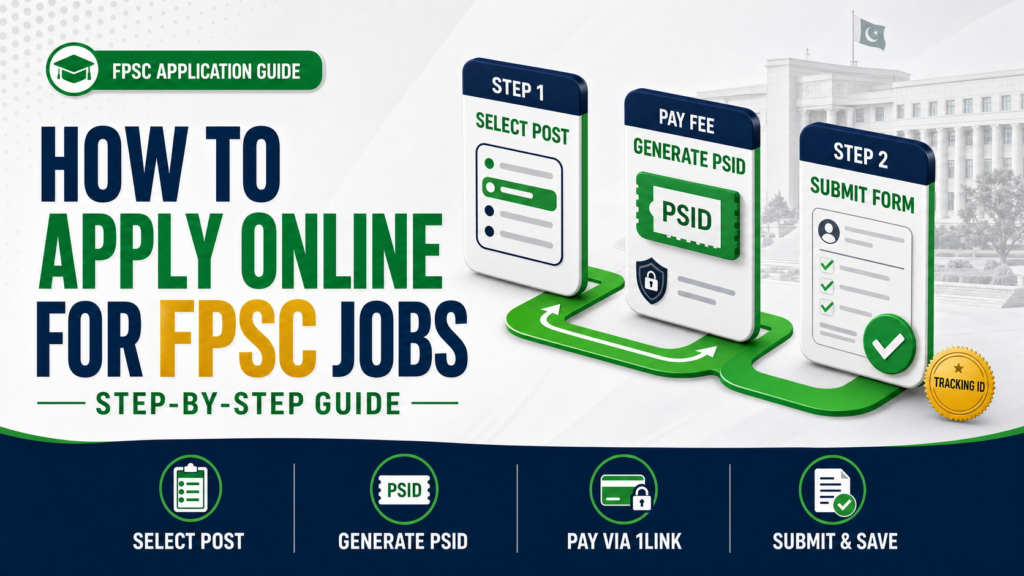
The Federal Public Service Commission accepts General Recruitment applications through its online system. The process is not complete after selecting a vacancy or paying the application fee. Candidates must complete the first form stage, generate a PSID, pay the prescribed fee, return to the same vacancy, finish Step 2, and receive a successful-submission confirmation with a tracking ID.
This guide explains how to apply online for FPSC jobs from beginning to end. It covers the current General Recruitment process, eligibility checks, PSID generation, fee payment, photograph upload, education and experience records, final submission, application printing, tracking-ID recovery, and correction of a submitted form.
For the broader process covering other government departments, commissions, documents, and application methods, read our complete government job application guide.
Scope: This article explains the FPSC General Recruitment application process for advertised posts, particularly BS-16 and above. CSS, MPT, and other competitive examinations may use separate advertisements, rules, portals, and application instructions.
FPSC Online Application Process at a Glance
The current FPSC General Recruitment workflow has two application stages with fee payment between them.
| Stage | What the candidate does | Result |
| Before applying | Reads the advertisement and confirms eligibility | Decides whether the selected post is suitable |
| Step 1 | Selects the post, enters CNIC and basic eligibility information | Generates a unique PSID and challan |
| Fee payment | Pays the prescribed fee against the PSID through an approved 1Link channel | Payment is connected to the selected case |
| Step 2 | Returns to the portal, uploads a photograph, and completes personal, education, and experience details | Application becomes ready for final submission |
| Final submission | Accepts the undertaking and submits the form | Receives confirmation, tracking ID, and print option |
| After submission | Saves records and monitors the official website | Prepares for syllabus, admission certificate, test, and later stages |
Paying the fee does not submit the application. FPSC states that candidates must return to the portal, complete Step 2, and receive the successful submission message before the closing date.
What to Prepare Before Applying
Before opening the form, download the complete advertisement and prepare the information required for your selected post. You can monitor our latest FPSC job updates to discover relevant vacancies, but always confirm the advertisement and application instructions on the official FPSC website.
Before entering personal information or paying a fee, use our government job verification guide to confirm that the advertisement and application page are genuine.
| Information or record | What to check before applying |
| CNIC | Number and issue date |
| Name and father’s name | Same spelling used in official documents |
| Date of birth | Consistent with the accepted academic or identity records |
| Domicile | Province, region, and district relevant to the advertised quota |
| Qualification | Exact degree, subject, result date, division, grade, or CGPA required |
| Experience | Relevant job title, employer, start and end dates, and duties |
| Government service | DPC or NOC details where applicable |
| Contact details | Active mobile number, email address, and complete postal address |
| Photograph | Recent passport-size image in the format and size required by the live portal |
| Payment access | ATM, mobile banking, internet banking, or access to a 1Link member bank branch |
The current official online application guideline specifies a recent passport-size photograph in JPG or JPEG format with a file size below 30 KB. Check the live portal in case this technical requirement changes.
Read the Advertisement Before Opening the Form
Do not select a post based only on its title. Read the complete consolidated advertisement and confirm that you meet every condition for that specific case.
| Requirement | What to verify |
| Qualification | Required degree, subject, division, certification, or professional registration |
| Experience | Required duration, relevant field, and whether it must be post-qualification experience |
| Age | Maximum and minimum age on the closing date, including applicable relaxation |
| Domicile and quota | Province, region, district, merit, gender, minority, or other allocation |
| Gender or religion | Any condition attached to the advertised vacancy |
| Closing date | The final date for application and fee completion |
| Case number | The exact FPSC reference for the selected post |
| Test center | A suitable available center for the candidate |
The General Instructions updated on 12 August 2026 state that eligibility, including age, education, and experience is reckoned up to the advertisement’s closing date. They also state that information entered in the application is treated as final and must later be supported by documents.
Step 1: Open the Official FPSC Recruitment System
Visit the official FPSC website and select Apply Online. Choose General Recruitment, read the linked instructions, and open the application option for available posts.
The FPSC recruitment system can also be reached through its General Recruitment portal. Starting from the FPSC homepage is safer than using a forwarded or shortened application link.
The portal currently provides these candidate services:
| Portal option | Purpose |
| Apply Online | Submit an application for an available post |
| Take Printout | Print a submitted application for a current advertisement |
| Retrieve Tracking ID | Recover a tracking ID for a current advertisement |
| Edit or Update Application | Correct permitted information after submission |
| Change Exam or Test Centre | Request a center change within the applicable conditions |
Step 2: Select the Correct FPSC Post
Open the list of available jobs and select the exact post for which you want to apply. Check the case number, department, scale, and post title before continuing.
After selecting the post, the portal displays its advertised requirements. Read them again instead of assuming that your degree or experience is acceptable. Select Apply for This Job only if you satisfy all required conditions.
A candidate should not proceed merely because the portal opens the form. Detailed eligibility can still be scrutinized later, and candidature may be rejected if the claimed qualification, experience, age, domicile, or other requirement does not match the recruitment rules.
Step 3: Enter Your CNIC and Confirm Eligibility
Enter your CNIC number in the field provided. The system checks whether an application already exists against that CNIC for the selected post and whether the candidate can proceed through the displayed options.
Complete the eligibility selections carefully. Depending on the vacancy, the form may request confirmation of gender, religion, domicile, qualification, and experience. The options shown can reflect the conditions advertised for the post.
If your domicile, gender, qualification, experience, or other required condition does not match, do not select an inaccurate option simply to continue. Information entered at this stage must later be supported through documentary evidence.
Step 4: Complete the Basic Information in Step 1
The first stage asks for basic candidate and eligibility information. The exact fields can depend on the selected post, but the current guideline includes items such as:
| Field | Entry guidance |
| Name | Enter it as shown on official records |
| Domicile | Select the correct province, region, and district |
| Domicile issue date | Use the date on the certificate |
| Gender and religion | Select only the applicable option |
| Test and interview center | Choose from the available options |
| Qualification and experience | Confirm only if the requirements are genuinely met |
| Result declaration date | Enter the relevant qualifying degree’s official result date |
| Government service | Declare service status accurately |
| DPC or NOC | Enter the required number and issue date if applicable |
| Verification code | Enter the displayed code correctly |
If two qualifications are required for eligibility, follow the portal and official guideline when entering the result date. The FPSC guideline explains that where two or more degrees are required, the result declaration date of the degree acquired later is entered.
Review every field before generating the PSID. Incorrect basic information can create problems during Step 2 and later document verification.
Step 5: Generate the FPSC PSID and Challan
After completing the required Step 1 fields, select Generate PSID & Challan. The portal generates a unique 16-digit PSID for payment of the application fee.
The PSID connects the payment with the selected case and candidate information. Each selected case generates a separate PSID, even though the candidate’s CNIC remains the same. The official fee-payment procedure states that the PSID remains valid until the advertisement closing date.
Before paying, verify the following information:
| Check | Why it matters |
| Candidate name and CNIC | Confirms the payment is linked to the correct applicant |
| Post and case number | Prevents payment against the wrong vacancy |
| Fee amount | Confirms the correct grade-based amount |
| PSID digits | Prevents payment failure or misdirection |
| Closing date | Ensures time remains to complete Step 2 |
Save the PSID and challan before leaving the page.
Step 6: Pay the FPSC Application Fee
The FPSC fee is paid against the system-generated PSID through the 1Link facility. The official procedure permits ATM, mobile banking, internet banking, and over-the-counter payment at a 1Link member bank branch.
Current FPSC Application Fee
The General Instructions updated on 12 August 2026 list the following fee rates for General Recruitment vacancies:
| Post grade | Application fee |
| BS-16 and BS-17 | Rs. 600 |
| BS-18 | Rs. 1,500 |
| BS-19 | Rs. 2,500 |
| BS-20 and above | Rs. 3,000 |
Always confirm the amount shown for your selected case on the live FPSC portal before payment. The official instructions state that the fee is non-refundable.
Payment Through an ATM
At a 1Link member bank ATM, open the bill-payment option, select the 1Link 1Bill Invoice or Voucher option, and enter the 16-digit PSID. The due amount should be fetched automatically. Verify it, complete the payment, and retain the printed receipt or transaction record.
Payment Through Mobile Banking
Open a mobile banking application that supports the required 1Link 1Bill invoice or voucher payment. This can include banking applications and supported services such as Easypaisa or JazzCash where the relevant 1Link option is available. Enter the PSID, verify the fetched amount, complete the payment, and save a screenshot or downloadable receipt.
Payment Through Internet Banking
Sign in to internet banking, choose the 1Link 1Bill invoice or voucher option, enter the PSID, verify the amount, and complete the transaction. Save the receipt or confirmation page.
Payment at a 1Link Member Bank Branch
Print the challan containing the PSID, post, name, and CNIC details. Visit a participating bank branch and ask the cashier to process the fee through the 1Link 1Bill Invoice or Voucher method. Obtain a stamped or printed receipt for your records.
Important: The old FPSC TR-6 challan, cheque, bank draft, and pay order are not accepted under the current online General Recruitment process.
Step 7: Return to the FPSC Portal After Payment
After payment, return to Apply Online on the FPSC website. Select the same post and enter your CNIC again.
The system should display payment confirmation against the PSID and allow you to proceed to Step 2. Review the information already entered during Step 1 and correct it before continuing if the portal permits changes at this stage.
If payment has been made but the portal does not allow Step 2, do not make another payment immediately. Confirm that the PSID, case, CNIC, and transaction were correct. The official fee guideline advises candidates to contact the payment channel or bank helpline when a paid PSID does not allow further processing.
Step 8: Upload Your Photograph and Complete Personal Details
In Step 2, upload a recent passport-size photograph that meets the live portal’s format and file-size requirements. The current guideline specifies JPG or JPEG format below 30 KB and advises candidates to avoid informal photographs.
Re-enter or confirm the requested personal information. Fields can include:
| Personal detail | Recommended check |
| CNIC | Enter the same number used in Step 1 |
| CNIC issue date | Match the identity card |
| Father’s name | Use official spelling |
| Date of birth | Match accepted records |
| Age relaxation | Claim only an applicable category supported by evidence |
| Postal address | Enter a complete reachable address |
| Mobile number | Use an active number |
| Email address | Use an address you monitor regularly |
| Disability | Declare accurately where applicable |
Check the email address and mobile number carefully because FPSC can use them for recruitment-related communication. Candidates should still monitor the official FPSC website rather than relying only on messages.
Step 9: Add Education, Courses, Research, and Experience
Enter education details relevant to the application. The portal can request the degree, result date, board or university, grade, division or CGPA, and major subjects.
Do not use the certificate printing date as the result date unless it is genuinely the official result declaration date required by the form. The General Instructions updated in August 2026 state that the result declaration date on the transcript is treated as the completion date for assessing the qualification against the closing date.
Add courses, training, research, or publications only where relevant and supported by records. For an experience based post, enter the experience required by the vacancy, including the post title, employer, dates, employment nature, and concise duties.
FPSC’s current instructions warn that subsequent experience claims omitted from the online form are treated as an afterthought and are not accepted. Enter every experience record needed to establish eligibility before final submission.
Experience Entry Checklist
| Experience field | What to enter |
| Post title | Actual designation shown by the employer |
| Organization | Complete department or company name |
| Start and end dates | Exact supported dates |
| Employment nature | Regular, contract, or another accurate status |
| Duties | Concise tasks relevant to the advertised requirement |
| Scale | Enter where applicable |
Do not alter a title, duty, or date to appear eligible. The information must match the experience certificate and any later verification.
Step 10: Review and Submit the FPSC Application
Before selecting Submit Your Application, review the complete form. Focus on fields that directly affect eligibility and communication.
| Final review item | Question to ask |
| Selected post | Is this the intended case and department? |
| CNIC and personal details | Are all numbers and spellings correct? |
| Domicile and quota | Does the selected option match the certificate and advertisement? |
| Qualification | Is the required degree and result date entered? |
| Experience | Is every required record included accurately? |
| Government service | Are DPC or NOC details entered where required? |
| Photograph | Is the correct image uploaded? |
| Contact details | Are the email and mobile number active? |
| Fee | Is payment confirmed against the correct PSID? |
Read the undertaking and select its confirmation checkbox only after reviewing the entries. Then select Submit Your Application.
A successful submission produces a confirmation message, a unique tracking ID, and an option to print the application.
How to Confirm That Your FPSC Application Is Submitted
Your application is not complete merely because:
•A PSID was generated.
•The fee was paid.
•Step 1 was saved.
•The form was opened after payment.
It is complete only after Step 2 is submitted and the portal displays the successful submission confirmation with a tracking ID and print option.
Save the following records:
| Record | Why to save it |
| Tracking ID | Required for printing, updating, or checking the submitted form |
| Submitted application | Provides a record of every claim entered |
| Payment receipt | Confirms payment against the PSID |
| Advertisement | Preserves the original eligibility and case information |
| PSID or challan | Helps resolve a payment or portal issue |
| Confirmation screenshot | Provides additional evidence of final submission |
Store these files in a folder named after the post, case number, and year.
How to Print an FPSC Application
The FPSC recruitment portal provides a Take Printout option for current advertisements. Enter the requested CNIC, tracking ID, and verification code to open the submitted form.
Print or save the application as a PDF for your records. Under the current online General Recruitment process, the printed copy is retained by the candidate and is not sent to FPSC unless a later official instruction for the specific case requires otherwise.
How to Retrieve a Lost FPSC Tracking ID
For current advertisements, the portal provides a Retrieve Tracking ID option. The current guideline describes recovery through the candidate’s CNIC and the displayed verification code.
After retrieving the ID, save it in more than one secure place. The recovery facility may be limited to current jobs, so do not rely on it as a permanent archive.
How to Edit or Update a Submitted FPSC Application
FPSC’s current General Instructions and application guideline state that a submitted application may be edited once up to the closing date.
Open Edit or Update Application, enter the CNIC and tracking ID, and review the fields the system allows you to change. Make all necessary corrections in one session because the edit opportunity is limited. Confirm the update and save or print the amended application.
Do not use the correction facility to introduce unsupported qualification or experience claims. FPSC treats the information in the online form as final and verifies it against documents later.
Common FPSC Application Mistakes
| Mistake | Possible consequence | Better approach |
| Applying without reading the complete advertisement | Ineligibility at scrutiny | Match every condition before payment |
| Selecting the wrong case | Application and fee linked to an unintended post | Verify post title, department, and case number |
| Paying the fee but not completing Step 2 | Application remains incomplete | Return to the portal and obtain final confirmation |
| Paying through the old TR-6 method | Payment is not accepted by the current system | Use the PSID and approved 1Link channel |
| Entering the wrong result date | Qualification may appear late or ineligible | Use the official result declaration date |
| Omitting required experience | Later experience claims may not be accepted | Enter all eligibility establishing records before submission |
| Using an incorrect domicile | Quota eligibility can be affected | Match the self domicile certificate |
| Entering an inactive email or phone number | Candidate may miss communication | Use active contact details and monitor FPSC online |
| Uploading the wrong photograph | Form may not meet portal requirements | Use a recent image in the required format and size |
| Losing the tracking ID | Printing and correction become difficult | Save the ID and submitted form immediately |
| Waiting until the closing date | Payment or portal issues may remain unresolved | Apply early, as FPSC advises |
Troubleshooting FPSC Portal and Payment Problems
Payment Completed but Step 2 Does Not Open
Confirm that the fee was paid against the PSID generated for the correct case and CNIC. Allow the payment channel to complete its processing, then reopen the same post through the official portal. If the payment remains unrecognized, contact the bank or payment-channel helpline as directed in FPSC’s fee procedure.
Photograph Does Not Upload
Check the live format and size requirement. Under the current application guideline, the photograph must be a recent JPG or JPEG image below 30 KB. Rename the file simply, avoid unusual characters, and try again through a supported browser with JavaScript enabled.
Portal Loads Slowly or Shows an Error
FPSC’s application guideline suggests closing and reopening the browser, reloading the site, or clearing browser history when pages load abnormally. Supported browsers listed in the guideline include Chrome, Firefox, and Edge, with JavaScript enabled.
Wrong Information Was Submitted
If the closing date has not passed and the edit facility is available, use the one permitted update carefully. Correct all errors together and save the amended application.
Tracking ID Was Not Saved
Use Retrieve Tracking ID for the current advertisement and enter the required CNIC and verification code.
Technical Assistance Is Required
The FPSC recruitment portal currently lists the helpline 051-111-000-248 for technical assistance during office hours. The official General Instructions also list fpsc@fpsc.gov.pk for online-access difficulties.
What Happens After You Apply?
Monitor the official FPSC website for the syllabus, test schedule, admission certificate, result, shortlisting, document requirements, and interview information. FPSC identifies its official website as the primary source of candidate information.
The General Instructions updated on 12 August 2026 state that test admission certificates are placed on the FPSC website and are not sent by post. Candidates are responsible for downloading the certificate within the permitted time and bringing it with a valid original identity document to the examination center.
| Post-application stage | Candidate action |
| Syllabus | Download the syllabus for the selected post |
| Test schedule | Confirm date, time, center, and reporting instructions |
| Admission certificate | Download and print it from the official website |
| Written test | Follow the published test instructions |
| Result | Check FPSC’s official result section |
| Shortlisting | Prepare the documents requested by the Commission |
| Document verification | Bring originals and required attested copies |
| Interview | Follow the official call and schedule |
| Final result or nomination | Check the FPSC website for the final outcome |
Final FPSC Application Checklist
Before closing the application portal, confirm that you have selected the correct post, checked eligibility, completed Step 1, generated the correct PSID, paid through an approved 1Link channel, returned to the same post, completed Step 2, submitted the form, received the tracking ID, and saved the application and payment proof.
After submission, note the closing date and monitor the FPSC website for the syllabus and admission certificate. Do not depend only on a forwarded message or social media update.
Frequently Asked Questions
How do I apply online for FPSC jobs?
Open the official FPSC General Recruitment portal, select the post, complete Step 1, generate the PSID, pay the prescribed fee through an approved 1Link channel, return to the same post, complete Step 2, and submit the form. Save the tracking ID and application copy.
Is the FPSC application completely online?
For the current General Recruitment process, FPSC states that applications are submitted online and manual applications or hard copies are not accepted.
Does paying the FPSC fee complete my application?
No. Fee payment is between Step 1 and Step 2. You must return to the portal, complete Step 2, submit the application, and receive the successful-submission confirmation.
What is an FPSC PSID?
It is the unique 16-digit payment identifier generated by the FPSC application portal for the selected case. The prescribed fee is paid against this PSID through an approved 1Link payment channel.
Can I pay the FPSC fee through Easypaisa or JazzCash?
The current General Instructions include mobile banking such as Easypaisa and JazzCash among possible payment channels through the 1Link facility. Use the 1Link 1Bill invoice or voucher option, verify the fetched amount, and save the receipt.
Can I use the old FPSC challan form?
No. The current instructions state that the old TR-6 challan, cheque, bank draft, and pay order are not accepted for the online General Recruitment process.
What is the current FPSC fee for BS-16 or BS-17?
The General Instructions updated on 12 August 2026 list Rs. 600 for BS-16 and BS-17 applications. Confirm the amount displayed for the selected case on the live portal before paying.
Can I edit my FPSC application after submission?
The current FPSC instructions allow one edit up to the advertisement closing date. Use the correction carefully and save the updated form.
Do I need to send the printed application to FPSC?
Under the current online General Recruitment guideline, the printed application is kept by the candidate and is not sent to FPSC. Follow any later case-specific instruction if FPSC requests documents.
What if I forget my FPSC tracking ID?
Use the portal’s Retrieve Tracking ID option for a current advertisement and provide the requested CNIC and verification code.
What photograph is required for the FPSC form?
The current online-application guideline specifies a recent passport-size JPG or JPEG photograph below 30 KB. Check the live portal before uploading in case the requirement changes.
Can I apply on the closing date?
The portal may accept applications up to the stated deadline, but FPSC advises candidates to apply early instead of waiting for the closing date. Early submission leaves time to resolve payment, upload, or portal issues.
Is this process also used for CSS applications?
This guide covers FPSC General Recruitment. CSS, MPT, and other competitive examinations can use separate advertisements, rules, and application procedures. Follow the official instructions for the specific examination.
Final Thoughts
The FPSC online application process is straightforward when completed in the correct order. Read the advertisement, confirm eligibility, complete Step 1, generate the PSID, pay through the approved 1Link method, return to the same post, complete Step 2, and submit the application.
The most important mistake to avoid is stopping after fee payment. Your application is complete only when the portal confirms successful submission and provides the tracking ID. Save every record and continue monitoring the official FPSC website for the next recruitment stage.
Disclaimer
GovtJobsPK.info provides recruitment guidance for informational purposes. FPSC can update its fees, portal fields, payment channels, file requirements, deadlines, and General Recruitment instructions. Candidates must check the current advertisement, live FPSC portal, and official instructions before submitting an application or payment.